Accounting Firm Management Software
AI receipt scanning, client expense tracking, and period reporting. Manage your accounting office efficiently.
An example workflow for your practiceHow Accounting Firms Use Yonetior
Accounting practices collect documents from multiple clients while managing their own office expenses. Keep those processes distinct: client records identify the relationship, and projects and tasks organize each period’s work. This workflow supports office operations rather than replacing statutory accounting or tax-filing software.
Organize client and period work
Keep contact details in one client record. Open a project for the period and assign document collection and review tasks to named owners, with clear due dates and notes about missing information.
Review captured receipt data
Upload office expense receipts. Compare AI-extracted totals, dates and merchant names with the original document, correct any differences and assign the right category and project before saving.
Check records before period close
Review outstanding tasks and project expenses together. Keep internal tracking separate from clients’ statutory records, and correct missing or misallocated expenses before preparing reports.
A practical example
Close a client’s monthly document review
Consider an accounting office collecting the month’s operational records for two clients. A late receipt, an unreadable scan and an unclear project reference can each delay a useful review. Keep separate client projects and decide who owns the missing-information list. The aim is to prepare traceable records for the responsible professional, with clear questions remaining, rather than to assume that collecting files has already completed the accounting work.
Separate client and period
Check the client profile and use the project description to identify the engagement and period under review. Keep similar client names distinguishable. Before adding an expense, confirm that the selected project belongs to the intended client. A shared folder name or a message subject is not enough evidence for allocation. If an older document arrives this month, retain its actual transaction date and explain the later review in a note.
Check extracted fields against the document
AI receipt scanning helps capture information, but review the result before saving. Compare the date, total, currency and category with the source; check for more than one total or a faded amount. Attach a readable file and ask the person who supplied it about uncertainty. A confidence score is not an accounting approval, and repeating the same upload can create a duplicate record that still needs human review.
Resolve exceptions before handover
Create a task for each missing document or unclear amount, with one owner and a due date. Use a short explanation so the next reviewer knows which field was corrected and which question remains open. Review expenses in a consistent currency context. When a report or export is needed, check the account’s plan and the selected period, client and project filters before sharing the output with the responsible professional.
Before the next handover
- Every reviewed expense points to readable evidence and the intended client/project.
- Late documents retain their real date; uncertain fields have an owner and follow-up.
- The handover distinguishes collected records, reviewed records and the professional’s final decisions.
Is the expense worksheet a tax filing or a direct import?
No. It is a manual preparation checklist. Yonetior’s operational records and generated draft documents do not replace statutory ledgers, e-invoice systems or the professional’s filing tools. Adapt the worksheet columns to the engagement, remove the illustrative row and review any output before using it elsewhere. Keep personal information out of publicly shared examples and do not infer compliance from the presence of a document.
Move from reviewed records to a client document
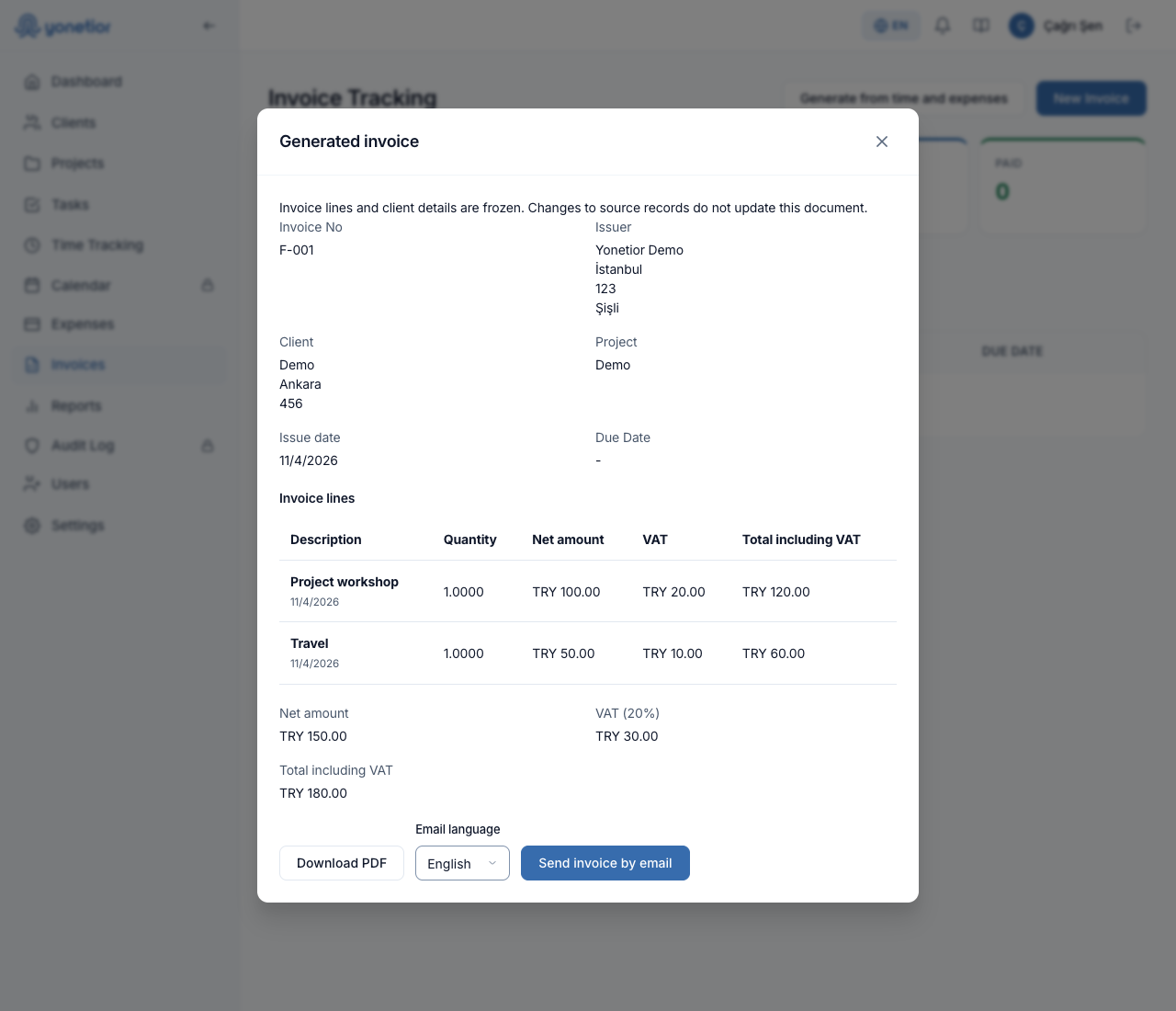
On Team and Professional, an authorized user can generate a draft invoice from eligible billable time and expenses. Choose the client and an associated project, then select completed, approved time entries and unbilled expenses. The source amounts include VAT; enter the applicable rate explicitly. Review the copied descriptions, dates, net amount, tax and total in the resulting document. A draft preserves the client and line details at creation, so editing a source later does not rewrite an existing invoice.
Download the PDF for review or explicitly confirm email delivery to the address saved with the invoice. Creating a document does not send it automatically. Keep externally issued invoices in the existing tracking workflow, and distinguish an operational draft from a statutory electronic invoice or a payment receipt. A cancelled draft does not make its original sources available for billing again. Check the source selection before creating it; do not cancel merely to select the same records twice.
Frequently Asked Questions
Try Yonetior for Accounting Firms
7-day first trial for eligible accounts · Cancel before it ends
Card details are collected in Stripe Checkout when an eligible trial starts.