Freelancer Management App
Income-expense tracking, client management, and project tracking. Designed for independent professionals.
An example workflow for your practiceHow Freelancers Use Yonetior
Independent professionals still need to separate clients, deliveries and business expenses. A small, consistent workflow makes it easier to see what was delivered and which costs belong to each job, without reconstructing the work at the end of the month.
Start with a client and project
Create the client record and a separate project for each engagement. Add scope, deliverables and important notes. Give concurrent jobs for the same client distinct names.
Record working time consistently
Use the timer during work or add a manual entry afterward. Connect research and revision time to the project, building a record that can inform future estimates.
Process receipts promptly
Upload the receipt, check the AI-extracted fields and save the expense to the correct project. A short weekly review helps catch missing records before the period ends.
A practical example
Finish a small client project without losing the records
A freelance professional is delivering a short project while another client’s work continues in parallel. One meeting has no time entry, a small travel receipt is missing and a revision request is still in a message thread. Keep separate client projects and start with a simple review routine. A lightweight structure is useful when it makes the next action clear; it need not turn every small engagement into a complicated administration process.
Define the job before adding tasks
Check the client’s contact details and associate the project with the right client. Describe the agreed result and use a project name that distinguishes this job from the next commission. Create tasks for the draft, client feedback and final handover, each with one owner and a realistic date. Keep the original scope visible so a new revision request can be discussed explicitly instead of disappearing into an undifferentiated task list.
Review time and receipts while the work is fresh
Record actual work with the available time tools and compare the entry with the activity performed. Give each expense a date, currency, category and correct project reference. If AI scanning is used, check extracted fields against the receipt rather than accepting a plausible-looking total. Keep unclear evidence on a follow-up list and avoid adding the same receipt twice because it arrived through two different channels.
Separate delivery from billing and payment
Before closing the work, check the final file and note what the client still needs to decide. Review billable time and expenses against the agreed terms. Solo can track eligible invoices and use its available OCR allowance; source-based generation is a separate Team/Professional feature. Whichever workflow you use, an issued invoice, a delivered file and a received payment are different events and should not be treated as interchangeable completion signals.
Before the next handover
- The next task and any revision request have a clear expected result.
- Missing time or receipt details are resolved before deciding what to bill.
- The record distinguishes the final delivery, invoice status and actual payment.
Should an independent professional choose a team plan?
Choose the plan by the features and account limits you need, not by the number of people in this example. Solo supports core client/project work and the allowances described in current pricing. Team and Professional add capabilities such as source-based invoice generation. Check the current offer and your existing subscription details; a public example does not change an older account’s entitlements or guarantee a particular limit.
Move from reviewed records to a client document
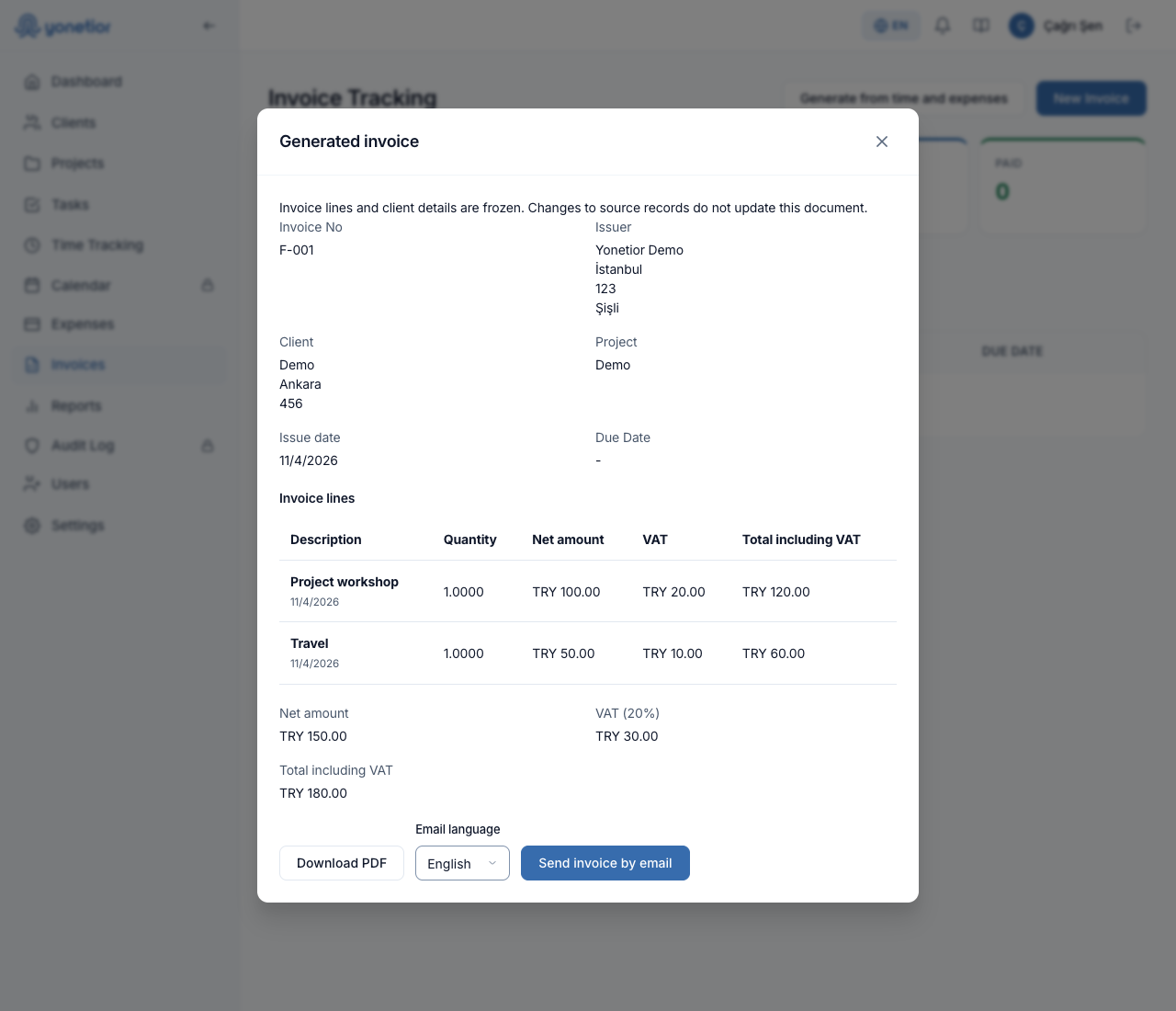
On Team and Professional, an authorized user can generate a draft invoice from eligible billable time and expenses. Choose the client and an associated project, then select completed, approved time entries and unbilled expenses. The source amounts include VAT; enter the applicable rate explicitly. Review the copied descriptions, dates, net amount, tax and total in the resulting document. A draft preserves the client and line details at creation, so editing a source later does not rewrite an existing invoice.
Download the PDF for review or explicitly confirm email delivery to the address saved with the invoice. Creating a document does not send it automatically. Keep externally issued invoices in the existing tracking workflow, and distinguish an operational draft from a statutory electronic invoice or a payment receipt. A cancelled draft does not make its original sources available for billing again. Check the source selection before creating it; do not cancel merely to select the same records twice.
Frequently Asked Questions
Related Articles
Project & Client Management for Freelancers: Secrets to Working Professionally
Master project and client management as a freelancer. Real data, proven workflows, and scaling strategies for independent professionals.
Read →Expense & Income Tracking for Freelancers: A Practical Guide
A practical guide to expense tracking, income management, tax compliance, and cash flow planning for freelancers and self-employed professionals.
Read →Try Yonetior for Freelancers
7-day first trial for eligible accounts · Cancel before it ends
Card details are collected in Stripe Checkout when an eligible trial starts.