Architecture Firm Project Management Software
Project budget tracking, document management, and subcontractor tracking. Organize your architecture firm.
An example workflow for your practiceHow Architecture Firms Use Yonetior
Architecture and engineering practices coordinate design revisions, site work and client requests. Clear project ownership and document organization help the team understand what needs attention. This workflow manages operational records; it does not replace CAD or specialist design tools.
Assign phases and deliverables
Organize design, revision and site work as project tasks with owners and dates. Add client change requests to the project notes so the team can update the work sequence.
Keep documents with the project
Upload relevant contracts, reports and files to the project. Use a consistent naming and versioning convention and make clear which document is being reviewed instead of relying on similar names in separate folders.
Separate site and project costs
Assign travel, materials and external service expenses to their project. Attach and check receipts. Review the cost distribution after delivery to inform resource planning for the next engagement.
A practical example
Prepare a design stage for a clean team handover
An architecture practice is completing a design stage before the next client meeting. A drawing export has changed, a site visit generated expenses and a subcontractor’s information is still outstanding. Use one recognizable project to collect the work, then make the remaining review visible as tasks. The example concerns operational coordination: it does not assume that uploading a drawing performs technical validation, model coordination or approval by a public authority.
Make the stage and files recognizable
Check the project’s client association and describe the stage being worked on. Name uploaded files so their purpose and revision are distinguishable, and keep the working document linked to the project. Observe the per-file upload limit and the account’s storage allowance. Where a file is too large, prepare an appropriate export through your own design tools; do not assume that the management application converts or edits the original drawing.
Assign review and missing-information tasks
Create a task for the drawing review, another for the site-visit note and one for outstanding external information. Give each task one owner, a useful due date and an explicit expected result. Record what changed and which decision is still needed. Keep formal approvals separate from internal task status. A colleague marking preparation complete should not accidentally imply that the client or an authority has approved the design.
Connect the stage’s work to its expenses
Record site travel, printing or external service costs against the correct project and compare them with readable evidence. Distinguish a supplier’s charge from your own recorded work and avoid counting the same cost twice. Review the currency and the agreement before deciding what is billable. When handing the stage over, leave a short list of unresolved cost or document questions with an owner rather than an unexplained total.
Before the next handover
- The stage, current document and outstanding revision questions are identifiable.
- Each handover task has one owner; internal completion is distinct from formal approval.
- Travel and external-service expenses have evidence and a clear project allocation.
Does the document area replace CAD or BIM software?
No. The document workflow stores and organizes files related to the project; it is not a drawing editor, a BIM coordination engine or an approval service. Continue technical work and validation in the appropriate specialist tools, then upload a suitable reference or export. Use the project record to coordinate responsibilities, evidence and next actions without claiming capabilities that a file attachment does not provide.
Move from reviewed records to a client document
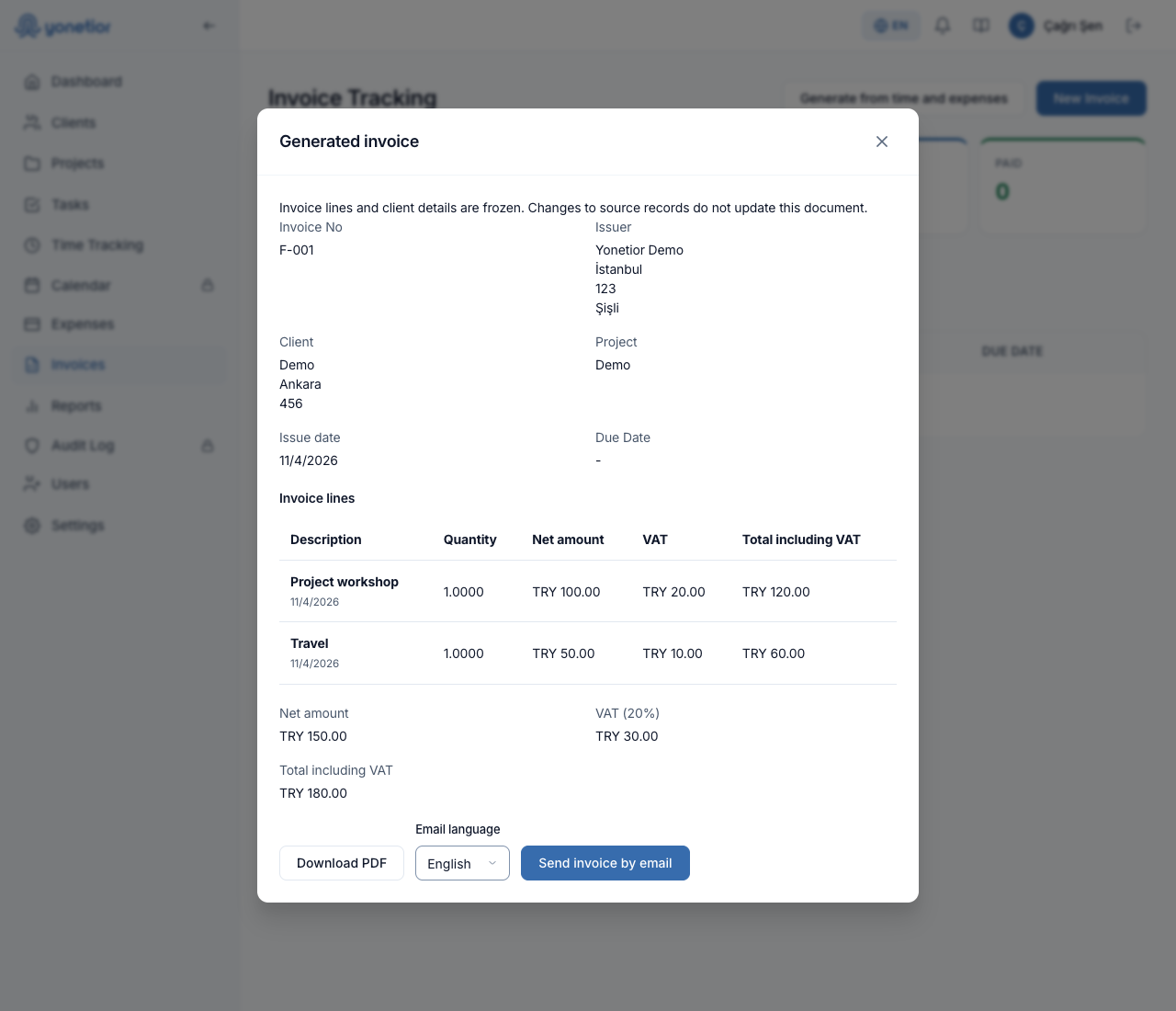
On Team and Professional, an authorized user can generate a draft invoice from eligible billable time and expenses. Choose the client and an associated project, then select completed, approved time entries and unbilled expenses. The source amounts include VAT; enter the applicable rate explicitly. Review the copied descriptions, dates, net amount, tax and total in the resulting document. A draft preserves the client and line details at creation, so editing a source later does not rewrite an existing invoice.
Download the PDF for review or explicitly confirm email delivery to the address saved with the invoice. Creating a document does not send it automatically. Keep externally issued invoices in the existing tracking workflow, and distinguish an operational draft from a statutory electronic invoice or a payment receipt. A cancelled draft does not make its original sources available for billing again. Check the source selection before creating it; do not cancel merely to select the same records twice.
Frequently Asked Questions
Try Yonetior for Architecture Firms
7-day first trial for eligible accounts · Cancel before it ends
Card details are collected in Stripe Checkout when an eligible trial starts.